
Phishing attack examples can look like normal emails, text messages, or websites you use every day. You might get a message from your bank saying there is a problem with your account.
A text may claim your package cannot be delivered. You may even see a fake CAPTCHA asking you to prove you are human.
The goal is often the same: trick you into clicking a malicious link, opening an attachment, sharing a password, or giving away payment or personal information.
These scams use social engineering and impersonation to make you react before you stop and check.
A phishing email may copy a real company’s name and logo. A phishing text, also called smishing, may appear to be from a bank, delivery service, or government agency.
A fake website can then collect your login details, while a malicious attachment may install malware. In some cases, stolen credentials can lead to account takeover or identity theft.
Recent FTC alerts show how quickly these tricks change. Reported examples include fake party invitations that ask for email passwords, fake CAPTCHA pages that can lead to malware, and text messages about deliveries, tolls, and tax refunds.
Businesses face another serious form called Business Email Compromise (BEC), attackers may use compromised or fake email accounts to request money or sensitive information.
You can learn the patterns. Once you know what a phishing attack looks like, you can spot warning signs before you click.
In this guide, you will see real-world phishing attack examples, learn what each scam is trying to steal, and follow simple steps to check a suspicious message, protect your accounts with multi-factor authentication (MFA), and report a scam safely.
What Is a Phishing Attack?
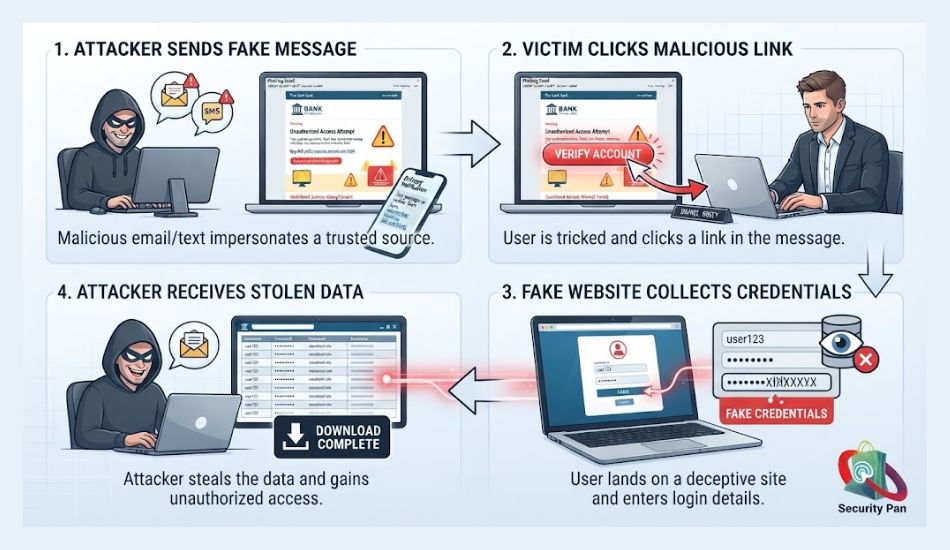
A phishing attack is a scam that tries to make you give away something valuable. That may be your password, bank details, credit card number, personal information, or access to an online account.
The attacker usually pretends to be someone you trust. You may receive an email from a fake bank, a text from a fake delivery company, or a message that looks like it came from your employer. The message often gives you a reason to act quickly.
For example, you may see: “Your account has been locked. Verify your information now.”
The message may contain a malicious link. When you click it, you may reach a fake website that looks like the real one. If you enter your username and password, the attacker can capture them.
Phishing can also use malicious attachments. Opening the file may install malware on your computer or phone. In other cases, the scam does not use a link or file at all. The attacker may simply ask you to send money or sensitive information.
What does a Phishing Attack Look Like?
A phishing attack is any message that impersonates someone you trust to trick you into handing over credentials, money, or access. The four channels you will actually encounter:
| Type | Channel | Classic lure |
| Email phishing | “Your password expires today” | |
| Smishing | SMS / RCS / WhatsApp | “You have an unpaid toll” |
| Vishing | Phone call | “This is IT, I need to verify your MFA code” |
| Quishing | QR code | Parking meter, invoice PDF, restaurant menu |
The channel changes. The psychology never does: urgency, authority, and a link that does the work.
What Are the Most Common Phishing Attack Examples and How Can You Spot Them?
You can see phishing in several forms:
- Phishing email: A fake email designed to steal information or make you click a harmful link.
- Phishing text (smishing): A scam sent through SMS or another messaging service.
- QR-code phishing: A QR code that sends you to a fake login or payment page.
- Business Email Compromise (BEC): An attacker impersonates or compromises an account to trick a business into sending money or information.
- Fake login page: A copy of a real website is used to collect your username and password.
- Malware phishing: A message tricks you into opening a file or installing software that may contain malware.
The method can change, but the basic trick stays the same: make you trust the message before you check it.
That is why looking at the sender alone is not enough. You also need to check the link, the request, the wording, and what the message is asking you to do.
Phishing Attack Examples You May See in Real Life Explained
The easiest way to understand phishing is to see how the scams look in real life. Attackers change the company name, message, and story, but many scams follow the same pattern.
1. Fake Bank Security Alert
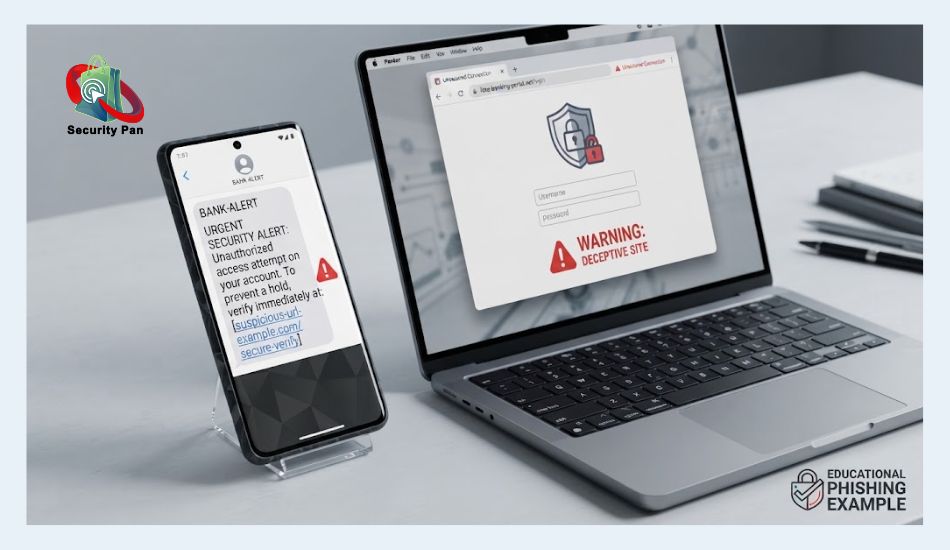
You receive an email or text saying your bank account has a security problem.
“We detected unusual activity. Confirm your account now to prevent suspension.”
The message sends you to a login page that looks like your bank’s website. If you enter your username, password, or card details, the attacker can collect them.
Red flags to check:
- You did not expect the message.
- It creates fear or urgency.
- The link goes to an unfamiliar domain.
- It asks for your password or sensitive information.
Do not use the link in the message. Open your banking app or type the bank’s known website address yourself.
2. Package Delivery Scam
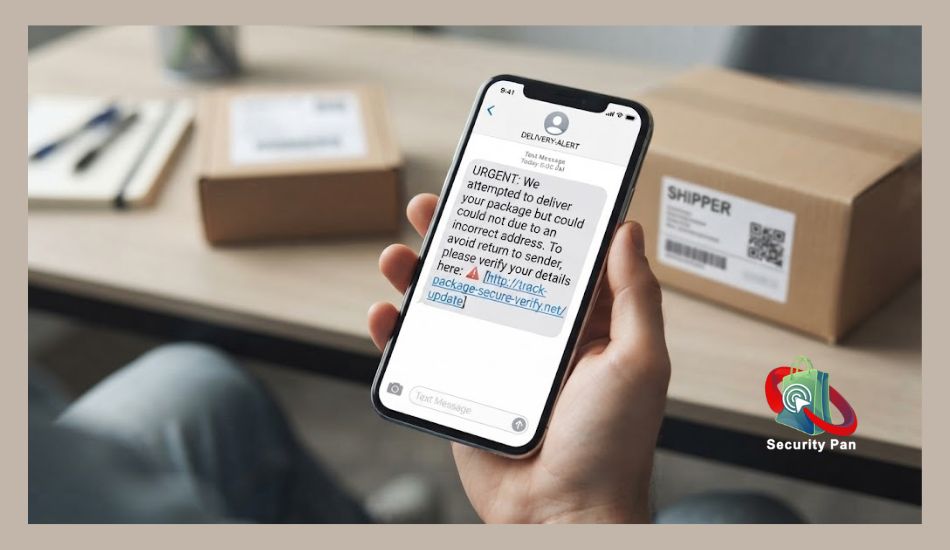
A text says your package cannot be delivered because your address is incomplete.
You may be asked to click a link and pay a small delivery fee. The fake page may collect your card details or personal information.
This type of smishing works because you may actually be waiting for a package.
Before clicking, check your order through the retailer or delivery company’s official app or website. Do not trust the message just because it mentions a package you expect.
3. Fake Tax Refund Message
You receive a message claiming that you are owed a tax refund. It asks you to click a link and confirm your personal or banking details.
The story sounds useful, but the real goal may be credential theft or identity theft.
A message asking you to provide sensitive information through an unexpected link deserves extra attention. Check your tax information through the official government service instead of following the message.
4. Fake Account Warning
An attacker may pretend to be a service you use, such as an email provider, social media platform, or cloud service.
The message may say: “Your account will be deleted today unless you verify it.”
The link takes you to a fake login page. Once you enter your credentials, the attacker may use them to access your account.
If you receive an unexpected account warning, go directly to the service’s official website or app. Check for alerts there.
5. QR-Code Phishing
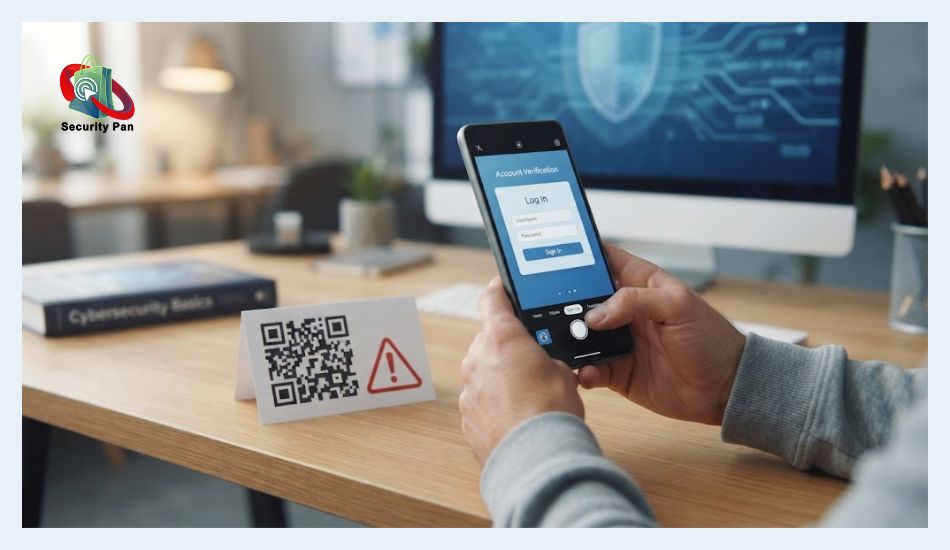
QR-code phishing, sometimes called quishing, hides the malicious link inside a QR code.
You may see a QR code in an email, text, poster, or even a printed notice. Scanning it can open a fake website on your phone.
The page may ask you to:
- Sign in to an account
- Enter payment information
- Download an app
- Confirm your identity
A QR code is not automatically safe. Treat it like any other link. Check where it takes you before entering information.
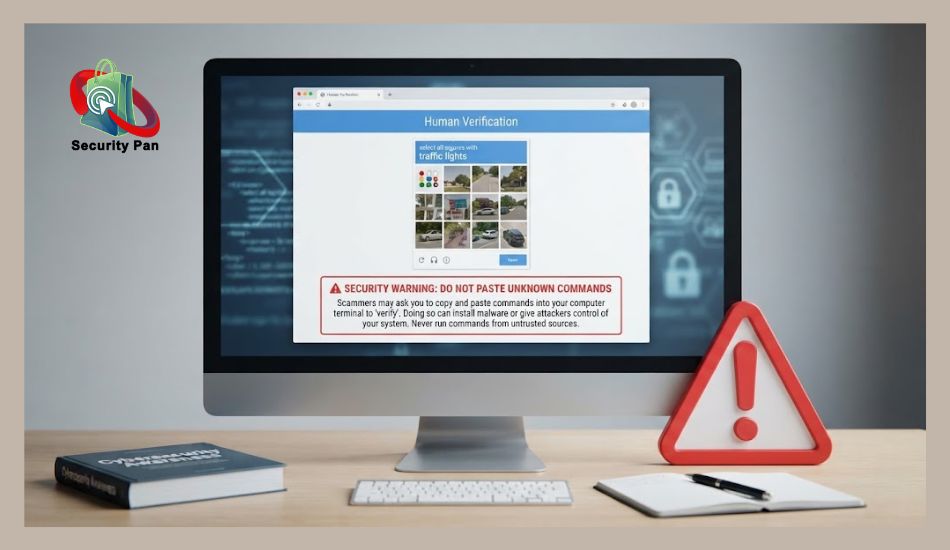
6. Fake CAPTCHA Scam
Some phishing attacks use fake CAPTCHA pages. You may be told to click a box to prove that you are human.
The page may then ask you to follow another instruction or paste a command into your computer. That action can lead to malware.
A normal CAPTCHA should not require you to run unknown commands on your computer.
If a CAPTCHA page tells you to open a command window, paste text, or run a command, stop.
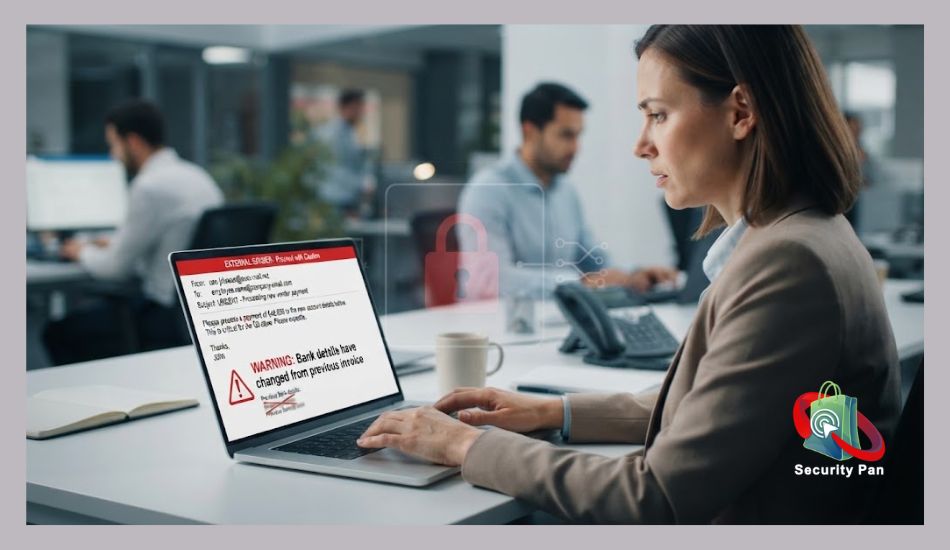
7. Business Email Compromise
A Business Email Compromise (BEC) attack targets businesses and employees.
For example, an attacker may pretend to be a manager and send:
“Please make this payment today. I am in a meeting, so handle it now.”
The request may include a new bank account or ask for confidential company information.
The FBI describes BEC as a crime that can involve compromised or spoofed email accounts and fraudulent requests for money or data.
Do not approve a sensitive request just because it appears to come from someone you know. Verify unusual payment or data requests through a separate trusted communication method.
The Pattern Behind These Phishing Attacks
These examples look different, but you can see the same pattern:
Trust → Urgency → Click → Fake page or request → Information theft
Once you learn this pattern, you can slow down before reacting. The next step is to look at the warning signs that can help you identify a phishing message before it causes damage.
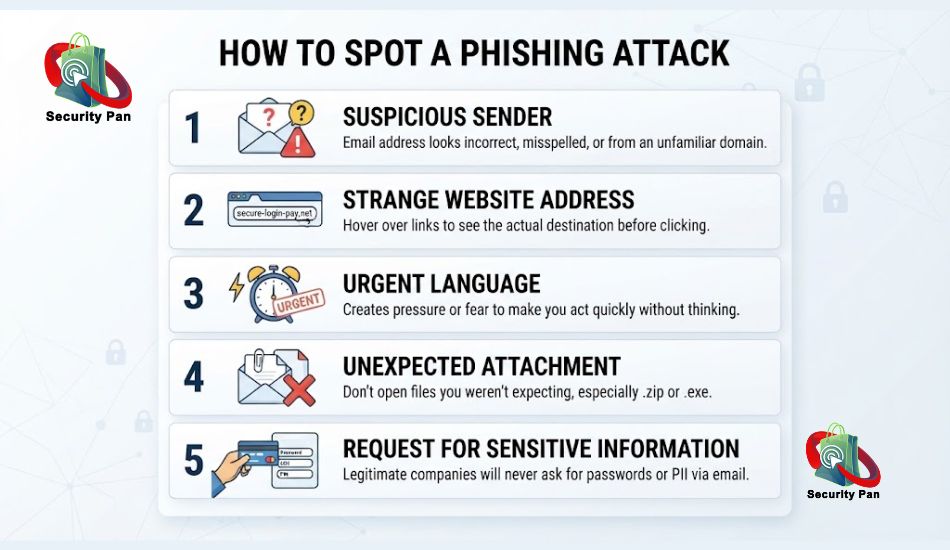
How to Spot a Phishing Attack
You do not need to be a cybersecurity expert to spot a phishing attack. Start by slowing down. Most phishing scams contain clues that can expose the trick.
1. Check the Sender
Look closely at the sender’s email address or phone number. A scammer may use a name that looks real while the actual address is different.
For example, an email may display “Your Bank”, but the address could come from an unrelated domain.
Do not trust the displayed name alone. Check the full sender address.
2. Look at the Link
Do not click a link just because it looks familiar.
On a computer, move your mouse over the link without clicking it. Check the address that appears.
Be careful if:
- The domain name looks unusual.
- The address contains random letters or numbers.
- The link uses a shortened URL.
- The website name has a small spelling change.
- The link does not match the company named in the message.
A secure-looking connection does not prove that a website is legitimate. A scam website can also use HTTPS.
3. Watch for Urgency
Phishing messages often try to make you act before you think.
You may see phrases such as:
- “Act now.”
- “Your account will be closed.”
- “Payment required today.”
- “Verify your identity immediately.”
- “You have 10 minutes to respond.”
Urgency is not proof of a scam, but it is a reason to stop and check the message.
4. Check What the Message Wants
Ask yourself one simple question: “Why does this person need this information from me?”
Be careful when an unexpected message asks for:
- Passwords
- Credit card details
- Bank information
- Security codes
- Social Security numbers
- Login credentials
- Cryptocurrency payments
- Gift cards
- Money transfers
A legitimate company should not need you to reveal a password just because you received an unexpected email or text.
5. Look for Unexpected Attachments
Be careful with files you did not expect.
A phishing email may use an invoice, receipt, document, delivery notice, or job offer as bait. Opening the file could expose you to malware.
If you were not expecting the attachment, verify it with the sender through a separate trusted channel before opening it.
6. Do Not Trust Perfect Branding
A phishing message can look professional.
Attackers can copy:
- Company logos
- Colors
- Email layouts
- Names
- Signatures
- Login pages
So, “It looks real” is not enough.
Check the sender, link, request, and context instead.
7. Use a Separate Way to Verify
If a message says your bank account has a problem, do not use the phone number or link inside that message.
Instead, open your banking app or use the official website you already know.
If your manager sends an unusual payment request, contact them through a known phone number or another trusted channel.
This simple step can stop many phishing attacks before you give the attacker anything valuable.
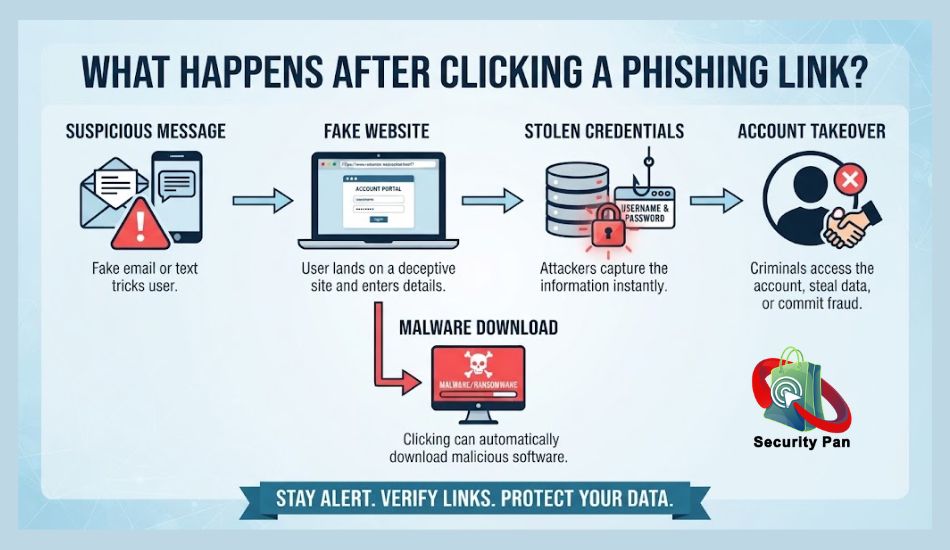
What Happens If You Click a Phishing Link?
Clicking a phishing link does not always mean you have been hacked. What happens next depends on what the attacker built behind the link and what you do afterward.
1. A Fake Login Page May Appear
The link may open a website that looks like your bank, email provider, social media account, or another service you use.
You may see a normal-looking login form asking for your:
- Username
- Password
- Email address
- Phone number
- Security code
If you enter the information, the attacker may receive it immediately.
2. The Attacker May Steal Your Login
A stolen password can give an attacker access to your account. If you reuse that password on other websites, the damage can spread to those accounts too.
This is why using a unique password for every important account matters.
A password manager can also help you avoid using the same password across multiple services.
3. The Page May Ask for More Information
Some phishing sites do not stop after asking for a password.
They may ask for:
- Your full name
- Date of birth
- Address
- Phone number
- Credit card information
- Bank details
- Security questions
- Multi-factor authentication codes
The attacker may use this information for further fraud or identity theft.
4. Malware May Be Downloaded
Some phishing links lead to malware instead of a fake login page.
You may be asked to download an app, browser extension, document, or other file. The file may contain malicious software.
Never install unknown software just because a message tells you that you need it to view a document, fix an account problem, or complete a security check.
5. Your Account May Be Targeted Again
Once attackers know that your email address is active, they may send more convincing messages.
For example, if they learn that you use a particular bank or online service, future phishing messages may be designed around that information.
This can make later attacks harder to recognize.
6. What Should You Do After Clicking?
- If you clicked a suspicious link but did not enter information or download anything, close the page and avoid interacting with it further.
- If you entered a password, change it immediately from the real website or official app. If you used that password elsewhere, change it there too.
- And if you entered banking or payment information, contact your bank or card provider using an official phone number or app.
- If you downloaded a suspicious file, do not open it again. Run a security scan with trusted security software.
- If you entered a multi-factor authentication code into a phishing page, secure the affected account immediately and review recent login activity.
The key point: clicking is not the end of the story. Your next action can still limit the damage.
What to Do If You Entered Your Information
If you entered your information into a phishing website, act quickly. You may still be able to protect your account and limit the damage.
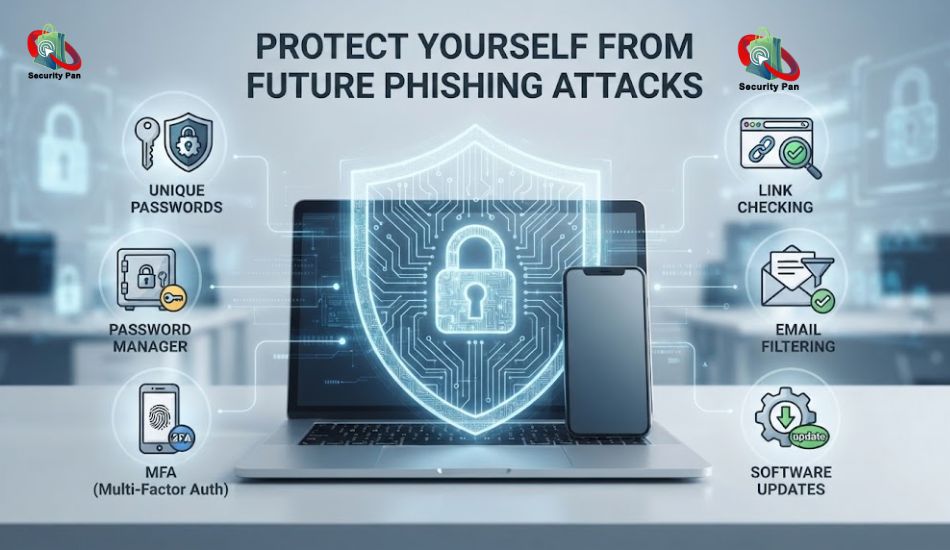
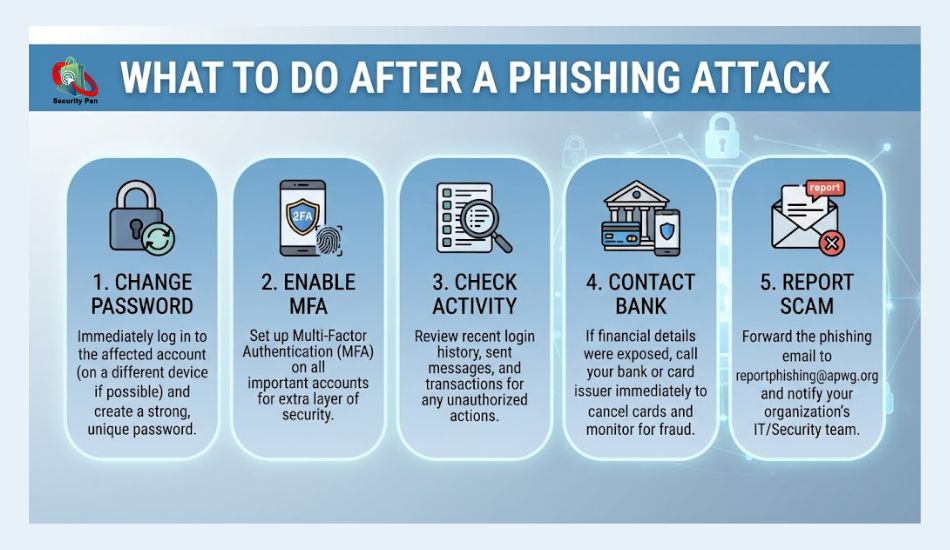
1. Change Your Password
Go directly to the real website or official app. Do not use the link from the phishing message.
Change the stolen password immediately.
If you used the same password on other accounts, change those passwords too. Use a different, strong password for each account.
2. Turn On Multi-Factor Authentication
Enable multi-factor authentication (MFA) on the affected account.
MFA adds another security step after your password. Depending on the service, this may use an authenticator app, security key, or another verification method.
If an attacker already has your password, MFA can make account access harder.
For important accounts, consider using phishing-resistant MFA where the service supports it.
3. Check Your Account Activity
Look for anything you do not recognize.
Check for:
- Unknown login locations
- New devices
- Password changes
- New email addresses
- Changed recovery settings
- Messages you did not send
- New payment methods
- Unusual transactions
Remove unknown devices or sessions if the service gives you that option.
4. Contact Your Bank If You Shared Financial Details
If you entered your credit card, debit card, or bank information, contact your financial institution using an official phone number or its official app.
Tell them what happened.
Ask what steps you should take to protect the account. Watch your statements for transactions you do not recognize.
Do not call a number provided in the suspicious message.
5. Protect Your Email Account
Your email account deserves special attention.
Attackers may try to use a stolen email account to reset passwords for your other services.
After changing your password, check your:
- Recovery email
- Recovery phone number
- Forwarding rules
- Email filters
- Connected apps
- Active login sessions
Remove anything you did not add.
6. Report the Scam
Reporting can help you and others.
In the US, you can report scams to the Federal Trade Commission (FTC). Internet crime can also be reported to the FBI Internet Crime Complaint Center (IC3).
If the phishing message targets your workplace, report it to your IT or security team as well.
7. Be Careful With Follow-Up Messages
After a phishing attempt, you may receive another message pretending to help you.
For example, someone may claim: “We detected fraud on your account. Give us your verification code so we can secure it.”
This can be another scam.
Do not give passwords, MFA codes, recovery codes, or other sensitive information to someone who contacts you unexpectedly.
Remember: if you already clicked or shared information, do not panic. Secure the affected account, change reused passwords, check your activity, protect your financial accounts, and report the scam. Acting quickly can reduce the chance of further damage.
How to Protect Yourself From Future Phishing Attacks
After you know the common phishing patterns, you can make your accounts harder to attack. You do not need to block every email or avoid every link. You need a few simple habits that reduce the chance of giving attackers what they want.
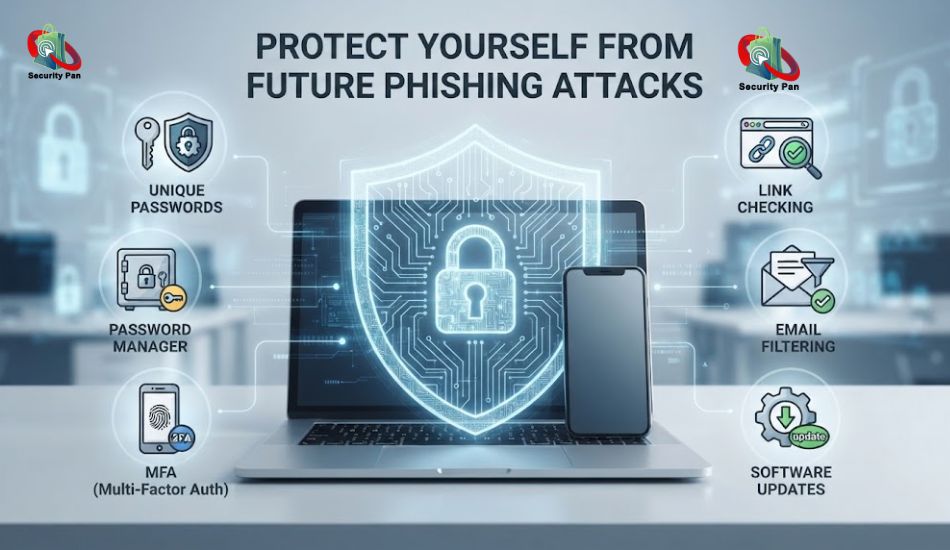
1. Use a Different Password for Every Account
Do not use the same password for your email, banking, shopping, and social media accounts.
If a phishing attack exposes one password, attackers may try that same password on other services.
A password manager can help you create and store unique passwords without having to remember each one.
2. Turn On MFA
Enable multi-factor authentication (MFA) on your important accounts.
Start with:
- Banking
- Cloud storage
- Social media
- Work accounts
- Shopping accounts
MFA adds another check after your password. If a phishing attack steals your password, the attacker may still need the second factor.
When available, use a phishing-resistant security key or passkey rather than relying only on codes sent by text.
3. Keep Your Software Updated
Install security updates for your:
- Phone
- Computer
- Web browser
- Apps
- Security software
Updates can fix security weaknesses that attackers may use after you click a harmful link or open a malicious file.
Turn on automatic updates when the option is available.
4. Check Links Before You Click
Make this a habit:
Stop → Check → Click
First, stop if the message is unexpected.
Next, check the sender and the website address.
Then decide whether you really need to open the link.
For sensitive accounts, you can skip the message link completely. Open the official app or type the website address yourself.
5. Be Careful With QR Codes
Treat a QR code like a clickable link.
Before you enter your password or payment details, check the website that opens.
If the address looks strange or does not match the service you expected, close it.
6. Protect Your Email Account First
Your email account can unlock many other accounts through password-reset links.
Use a strong, unique password and MFA for your main email account.
Also check your recovery settings from time to time. Make sure the recovery email and phone number belong to you.
7. Use Spam and Phishing Filters
Most major email services have automatic filters that detect suspicious messages.
Keep these protections enabled.
You should still check suspicious messages yourself because no filter catches every phishing attack.
8. Verify Unusual Requests
If someone asks you to send money, share sensitive data, or change payment details, verify the request another way.
For example, if an email appears to come from your manager, call them using a known number rather than replying to the email.
This is especially important for businesses because Business Email Compromise attacks can use trusted names and familiar conversations.
9. Keep Your Devices Protected
Use trusted security software and keep your operating system and browser updated.
If your device supports built-in security features, keep them enabled.
You should also avoid downloading software from unknown websites or opening unexpected attachments.
10. Build One Simple Rule
When a message creates fear, urgency, curiosity, or a reward, slow down.
Ask yourself:
- Who sent this?
- What do they want?
- Where will this link take me?
- Can I verify the request another way?
That short check can stop a phishing attack before your password, money, or personal information reaches the attacker.
How to Report a Phishing Scam
Reporting a phishing scam helps you take the right next step and can help warn others about the same attack. The reporting method depends on where you received the message and what the attacker tried to steal.
1. Report Phishing Emails
If you receive a suspicious email, use your email provider’s Report Phishing or Report Spam option.
Do not reply to the attacker. Do not click more links to investigate the message.
If the email targets your workplace, send it to your IT or security team using your company’s approved reporting process.
2. Report Phishing Text Messages
For suspicious text messages, avoid clicking the link or replying.
In the US, you can forward unwanted scam texts to 7726 (SPAM). This helps participating wireless providers identify and handle unwanted messages.
You can also report scams to the Federal Trade Commission (FTC).
3. Report Internet Crime
If you lost money, shared sensitive information, or believe you were targeted in a serious online crime, you can report it to the FBI Internet Crime Complaint Center (IC3).
Keep useful evidence before deleting the message. This may include:
- The sender’s email address
- Phone number
- Website address
- Screenshots
- Transaction details
- Date and time of the message
- Copies of suspicious emails or messages
Never send your password or security codes when making a report.
4. Report Financial Fraud Quickly
If you gave a scammer your bank or card information, contact your bank or card provider immediately.
Use the phone number on your card, your bank statement, or the official banking app. Do not use contact details from the phishing message.
If money was already transferred, tell the financial institution that you believe the transaction is connected to fraud. Ask what recovery or account-protection steps are available.
5. Report the Fake Website
If a phishing message sends you to a fake website, save the website address and report it through the appropriate service or to the company being impersonated.
For example, if a scammer creates a fake login page using a company’s name, the real company may have a security or abuse reporting channel.
6. What You Should Not Do
Do not try to attack the scammer’s website or investigate the attacker yourself.
You do not need to prove who is behind the phishing campaign. Your priority is to protect your accounts, preserve useful evidence, and report the incident through trusted channels.
The faster you report a phishing attempt after noticing it, the sooner you can move from reacting to the scam to protecting yourself from the next one.
Phishing Attack Examples: What You Should Remember
Phishing attacks can look different every time, but the goal is usually simple: make you trust a fake message long enough to give away something valuable.
A fake bank alert may try to steal your password. A delivery text may ask for your card details. A QR code may send you to a fake login page. A business email may try to make you send money to the wrong account.
You can reduce the risk by following a simple routine:
Stop → Check → Verify → Act
- Stop: Do not react to an urgent message immediately.
- Check: Look at the sender, link, attachment, and request.
- Verify: Contact the company or person through a trusted channel.
- Act: If it is a scam, report it and secure any account you may have exposed.
If you already clicked a phishing link, do not assume the damage is done. Change exposed passwords, enable MFA, check account activity, and contact your bank if you shared financial information.
The most useful skill is not memorizing every phishing attack example. It is learning to recognize the pattern behind the scam.
When a message creates urgency and asks you to click, pay, log in, download something, or share sensitive information, slow down before you act. That short pause can prevent a simple phishing message from becoming an account takeover, financial loss, or identity theft.
Final Checklist: Stop a Phishing Attack Before It Starts
Before you click an unexpected link, open an attachment, scan a QR code, or send information, take a few seconds to check the message.
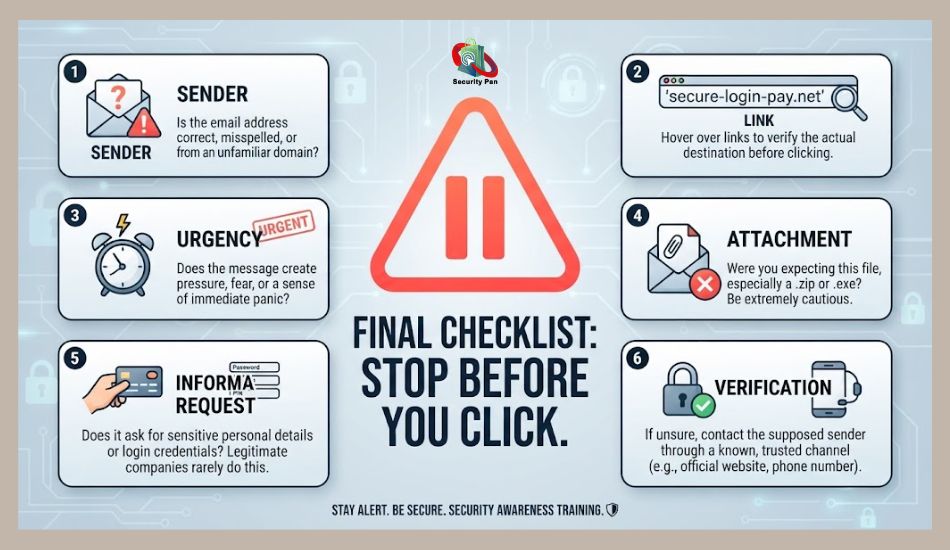
Use this simple checklist:
- Check the sender: Does the email address or phone number look correct?
- Check the message: Were you expecting this request?
- Check the link: Does the website address match the real company?
- Check the request: Is it asking for a password, payment, security code, or personal data?
- Check the urgency: Is the message trying to scare you into acting quickly?
- Check attachments: Did you expect the file?
- Verify separately: Can you confirm the request through the official app, website, or a trusted phone number?
- Protect your accounts: Use unique passwords and MFA.
- Act quickly after a mistake: Change exposed passwords, contact your bank if needed, and report the scam.
You do not need to identify every new phishing trick. Focus on the behavior behind the message.
If someone wants you to act quickly, give away sensitive information, or move money, stop and verify first.
That habit can help you avoid many phishing attacks before they become a bigger security problem.
Where to report phishing
| Region | Where to report |
| United States | FBI IC3 (ic3.gov), FTC (reportfraud.ftc.gov), forward texts to 7726 |
| United Kingdom | report@phishing.gov.uk, Action Fraud, forward texts to 7726 |
| Canada | Canadian Anti-Fraud Centre |
| Australia | Scamwatch / ACSC (cyber.gov.au) |
| EU | Your national CERT and data protection authority |
| India | cybercrime.gov.in, CERT-In |
| Global | APWG at reportphishing@apwg.org |
Get more relevant articles: What Is Two-Factor Authentication? (Beginner’s Guide)
Conclusion: What Are Some Real Phishing Attack Examples You Should Know?
Phishing attack examples show you how simple a scam can look. A fake bank alert, delivery text, QR code, account warning, or business email can appear normal at first.
The danger starts when you click, log in, download a file, send money, or share sensitive information without checking the request.
You can reduce that risk by slowing down.
Check the sender. Inspect the link. Question urgent requests. Avoid unexpected attachments. Verify sensitive requests through the official website, app, or a trusted contact.
Use unique passwords and multi-factor authentication (MFA) to add another layer of protection.
If you already entered information into a phishing site, act quickly. Change exposed passwords, check your account activity, contact your bank when financial details are involved, and report the scam.
You do not need to memorize every new phishing trick. You need to recognize the pattern and give yourself time to check before you act.
Want more practical cybersecurity alerts and scam warnings? Sign up for the SecurityPan email alerts to stay informed about new threats, phishing tricks, and simple ways to protect your accounts.
FAQs: Phishing Attack Examples And How Recovery Real Attacks.
1. What is a phishing attack?
A phishing attack is a scam that uses a fake email, text, website, or other message to trick you into giving away information. Attackers may want your password, payment details, personal data, or access to an account.
2. What is a common phishing attack example?
A common example is a fake bank message saying your account has a security problem. The message sends you to a fake login page and asks you to enter your username and password. Other examples include fake delivery notices, tax messages, account warnings, QR-code scams, and fake business payment requests.
3. How can you tell if an email is phishing?
Check the sender’s full email address, the links, the request, and the tone of the message. Be careful if the email creates strong urgency or asks for passwords, payment details, security codes, or other sensitive information. Do not trust an email simply because it uses a real company logo.
4. What should you do if you clicked a phishing link?
Close the page and do not enter any more information. If you entered a password, change it from the real website or official app. If you reused that password elsewhere, change it on those accounts too. If you shared banking or card details, contact your financial institution using an official contact method.
5. Can a phishing attack steal your password?
Yes. A phishing website can copy the appearance of a real login page and collect the information you enter. Attackers may then try to use the stolen password to access your account or other accounts where you used the same password.
6. Are phishing texts dangerous?
Yes. Phishing texts, often called smishing, can contain malicious links or fake requests for personal and financial information. Because you may read a text quickly on your phone, check the sender and link before taking action.
7. Can a QR code be a phishing attack?
Yes. QR-code phishing, or quishing, can send you to a fake website when you scan the code. Before entering information, check the website address and make sure it matches the service you intended to use.
8. Does MFA stop phishing?
MFA adds an important layer of protection, but not every form of MFA provides the same level of phishing protection. Where available, phishing-resistant MFA, such as passkeys or security keys, can provide stronger protection against attacks that try to steal login credentials.
9. Where should you report a phishing scam?
In the US, you can report consumer scams to the Federal Trade Commission (FTC) and internet crime to the FBI Internet Crime Complaint Center (IC3). You can also report suspicious messages through your email provider, mobile carrier, workplace security team, or the company being impersonated.
10. What is the most important phishing warning sign?
There is no single warning sign that catches every phishing attack. A message becomes more suspicious when several clues appear together: unexpected contact, urgency, an unusual link, a sensitive request, or a demand for payment or login information. When several of these appear at once, stop and verify the message through a trusted channel.
Sources referenced: FBI IC3 Annual Report; APWG Phishing Activity Trends Q1 2026; Verizon DBIR 2026; Mandiant M-Trends 2026; IBM Cost of a Data Breach 2025; CrowdStrike Global Threat Report 2026; KnowBe4; Pindrop; Palo Alto Networks Unit 42; US Department of Justice (United States v. Rimasauskas).
This article is written for security awareness. It describes attacker behaviour so readers can recognise it, and contains no operational detail for conducting attacks.

