
How Stop Hackers Home Wi-Fi starts with your router. If your internet suddenly feels slow, you see a device you do not recognize, or your router settings look different, do not ignore it.
Your wireless router connects your phones, laptops, smart TVs, security cameras, and other IoT devices to the internet. If that router is weak or out of date, a single security gap can put more than your Wi-Fi at risk.
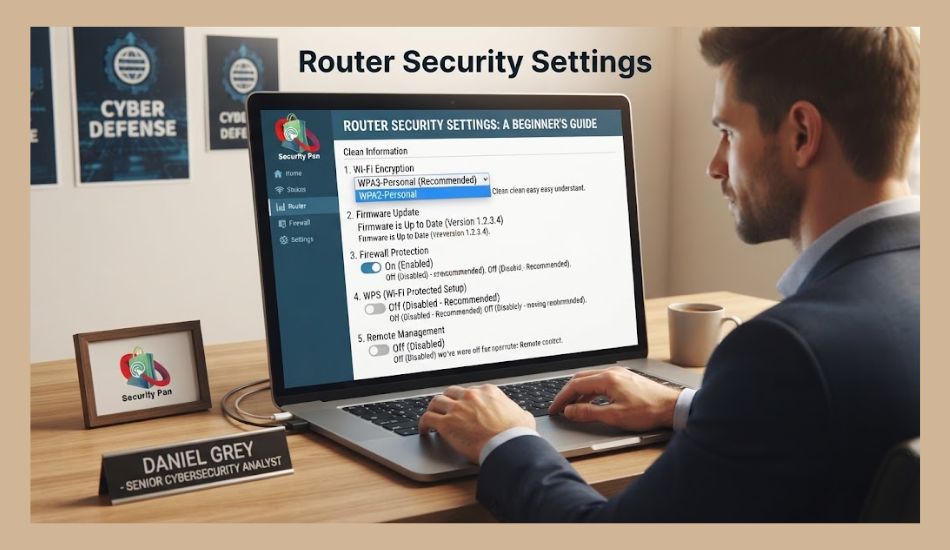
The good news is that you can close many of these gaps yourself. Start by checking your router for WPA3 (Wi-Fi Protected Access 3) or WPA2 (Wi-Fi Protected Access 2) encryption, changing the default Wi-Fi and admin passwords, and installing the latest firmware.
You should also review remote management, WPS (Wi-Fi Protected Setup), and UPnP (Universal Plug and Play) settings, enable the router firewall, and use a guest network for visitors and less-trusted devices. The FTC recommends these steps for securing a home Wi-Fi network.
You also need to check older routers and smart devices. The FBI has warned that end-of-life routers can be exploited and that compromised home IoT devices can be used as residential proxies.
In this guide, you will check your network, find weak points, lock down your router, and protect the devices connected to it.

Is Someone Using Your Home Wi-Fi Without Permission?
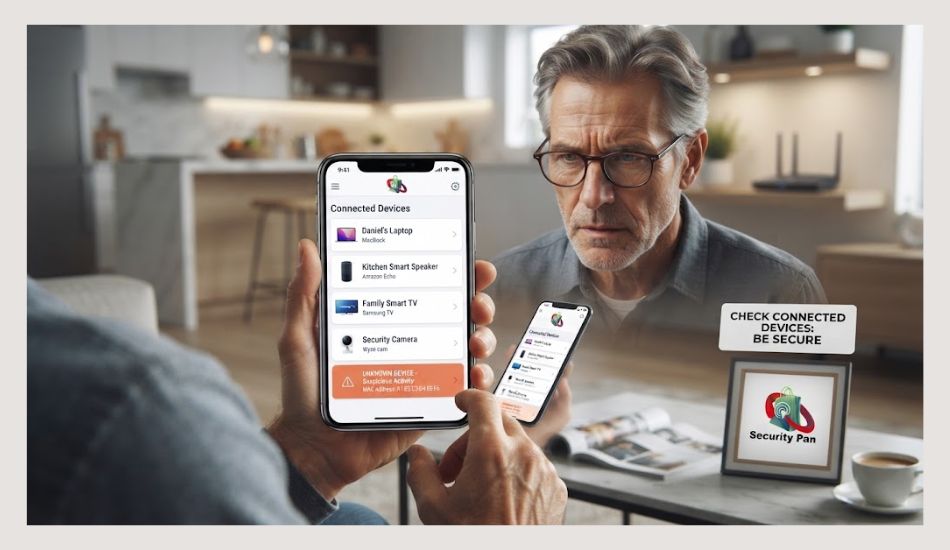
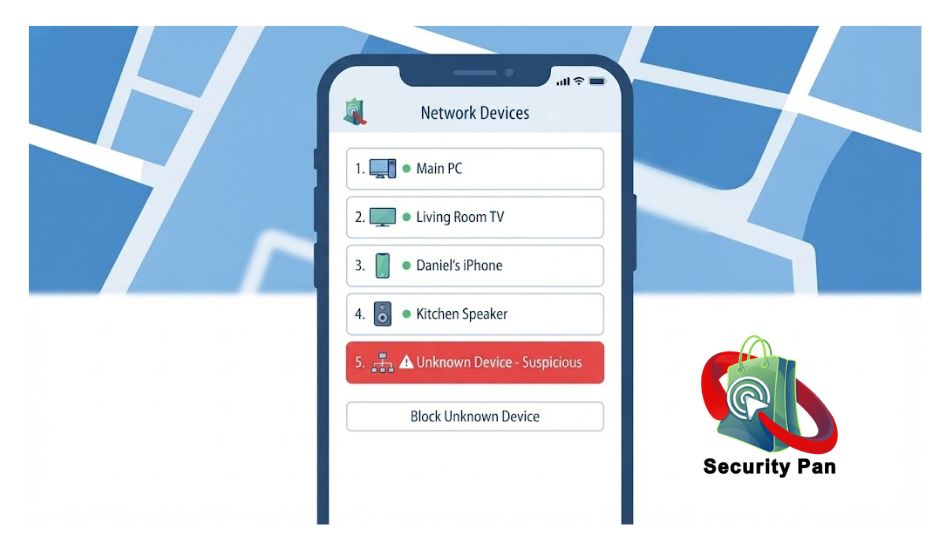
Before you change router settings, check whether an unknown device is actually connected to your network. Your router keeps a list of devices using your Wi-Fi, or Wireless Fidelity.
You may see phones, laptops, smart TVs, printers, cameras, or other smart home devices.
An unknown device does not always mean a hacker. Your TV, game console, smart speaker, or a family member’s phone may appear under a name you do not recognize. Check the device name, MAC address, and manufacturer before removing it.
Look for these warning signs:
- A device you cannot identify
- Your Wi-Fi becomes unusually slow
- Your router settings change without your action
- Your Wi-Fi password stops working
- Unknown devices keep returning
- Your router shows unusual network activity
- A security camera or (Internet of Things) IoT device behaves strangely
If you find a device you cannot explain, change your Wi-Fi password and router admin password. Then review the router’s connected-device list again.
If the unknown device returns, continue checking the router’s security settings before assuming the problem is solved.
Why Can Your Home Wi-Fi Be Hacked?
Your home Wi-Fi network can be attacked when your wireless router uses weak settings or old software. Attackers do not always need to break strong encryption. They may look for simple gaps that you have not fixed.
1. Weak Wi-Fi Password
A short or common password is easier to guess. Avoid names, addresses, phone numbers, birthdays, or simple patterns. Use a long, unique Wi-Fi password that you do not use for another account.
2. Default Router Password
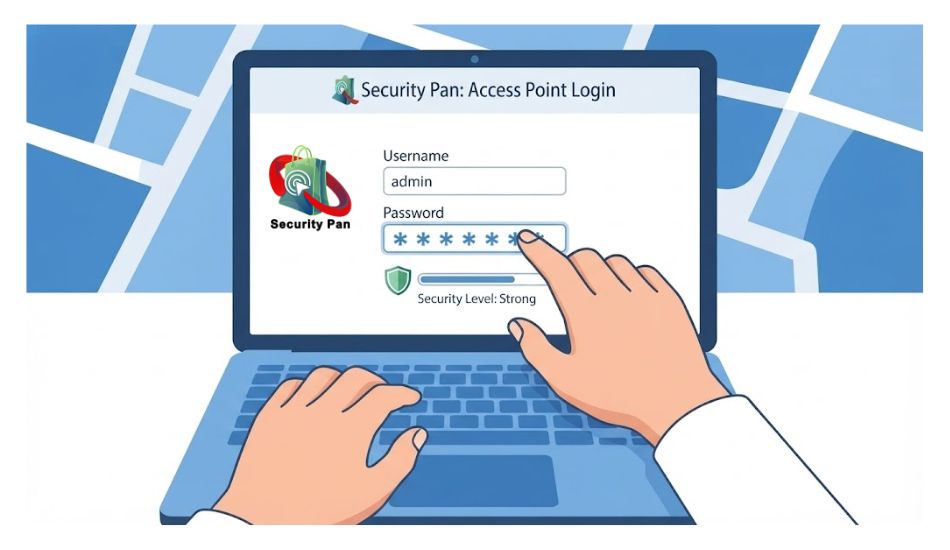
Your router has an admin password that controls its settings. If you never changed the default password, someone who knows the default credentials may be able to access the router.
Change the admin password separately from your Wi-Fi password.
3. Old Wi-Fi Security
Check if your router uses WPA3. If WPA3 is not available, use WPA2. Do not use outdated security such as WEP.
4. Outdated Firmware
Your router’s firmware controls how it works. Router makers release updates to fix security problems. If your router has an old firmware version, attackers may target known weaknesses.
Check the manufacturer’s update page or your router’s administration panel for updates.
5. Remote Management
Remote management lets you control your router from outside your home network. You may not need this feature. If you do not use it, turn it off.
6. WPS and UPnP
WPS (Wi-Fi Protected Setup) can make connecting devices easier, but you may not need it. UPnP (Universal Plug and Play) can also allow devices to open network ports automatically. Review both settings and disable them when you do not need them.
7. Old Router
An end-of-life router may no longer receive security updates. That means a newly discovered flaw may never be fixed. The FBI has warned that outdated routers can be abused by cybercriminals.
If your router no longer receives security updates or cannot support modern security standards, replacing it may be safer than trying to patch an unsupported device.
How to Check If Your Wi-Fi Has Been Compromised
Before you reset your router, check what is happening on your network. You can often find signs of a problem from the router’s own settings.
1. Check Connected Devices
Open your router’s admin page or mobile app and find the connected-device list. Compare every device with the phones, computers, TVs, cameras, printers, and smart home devices in your home.
If you see a device you cannot identify, do not assume it is a hacker. Check its device name, manufacturer, and MAC address first.
2. Check Your Router Settings
Review the main security settings. Look for changes you did not make, such as:
- A new admin account
- A changed (Domain Name System) DNS server
- If you changed the Wi-Fi name
- A changed Wi-Fi password
- Remote management being turned on
- New port-forwarding rules
- WPS or UPnP being enabled
Unexpected changes are worth investigating, especially if you did not make them.
3. Check for Firmware Updates
Find the router’s firmware version and compare it with the latest version from the manufacturer. An update may fix a known security flaw.
If your router no longer receives updates, check whether the manufacturer has marked it as end-of-life. An unsupported router should not be treated as a secure long-term device.
4. Check for Unusual Network Activity
A sudden increase in data use can have many causes, such as streaming or downloads. But unexplained traffic from an unknown device deserves attention.
Check your router’s traffic or device-usage page if it provides one. Focus on devices you do not recognize or devices that are using far more data than expected.
5. Reset the Router If You Cannot Trust It
If you find major unauthorized changes and cannot restore the router to a trusted state, perform a factory reset. Then install the latest firmware, create a new admin password, set a new Wi-Fi password, select WPA3 or WPA2, and review the security settings again.
Do not stop after changing the Wi-Fi password if you believe the router itself was compromised. The router’s admin settings and firmware also need to be checked.
How to Stop Hackers from Your Home Wi-Fi
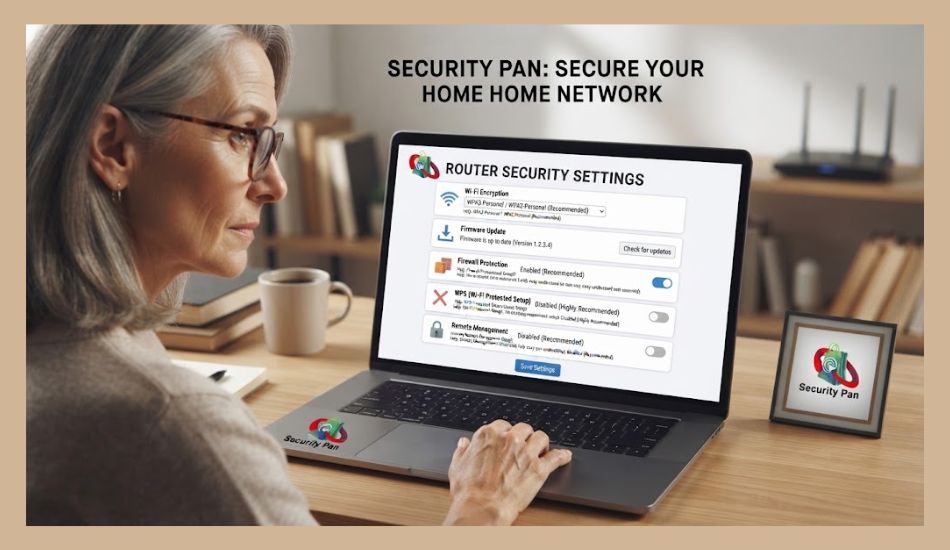
Once you know your router is secure, protect the network with a few key changes. You do not need advanced cybersecurity skills. You need the right settings and strong passwords.
1. Change Your Wi-Fi Password
Create a long, unique Wi-Fi password. Do not use your name, address, phone number, or another password you already use.
After changing it, reconnect your trusted devices. This also removes devices that still rely on the old password.
2. Change the Router Admin Password
Your Wi-Fi password and router admin password protect different things.
The Wi-Fi password controls network access. The admin password controls the router’s settings.
Use a different strong password for the router admin account. Never leave the manufacturer’s default admin password in place.
3. Use WPA3 or WPA2
Open your router’s wireless security settings. Select WPA3 when your router and devices support it.
If WPA3 is not available, use WPA2. Avoid WEP and other outdated security options.
5. Update Router Firmware
Install the latest firmware available for your router. Turn on automatic updates if your router supports them.
Firmware updates can fix security flaws that attackers may use to access the router.
6. Turn Off Remote Management
Remote management allows the router to be controlled from outside your home network. If you do not need it, disable it.
This reduces the number of ways an attacker can reach your router’s administration interface.
7. Review WPS and UPnP
Check WPS and UPnP in your router settings.
If you do not need WPS, turn it off. Review UPnP (Universal Plug and Play) as well, especially if you do not need devices to automatically open network ports.
8. Enable the Router Firewall
Make sure your router firewall is enabled. It helps control unwanted connections between your home network and the internet.
Do not disable it simply because a device or application asks you to.
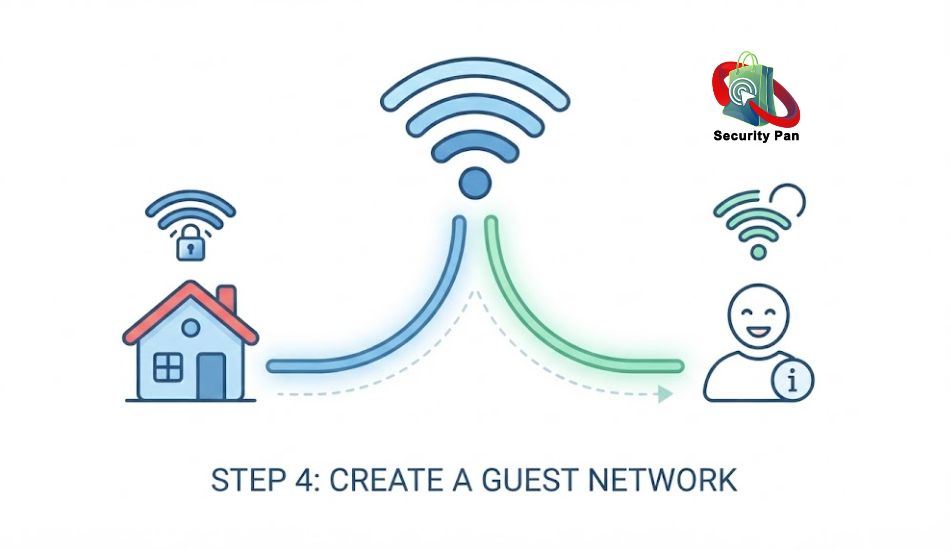
9. Create a Guest Network
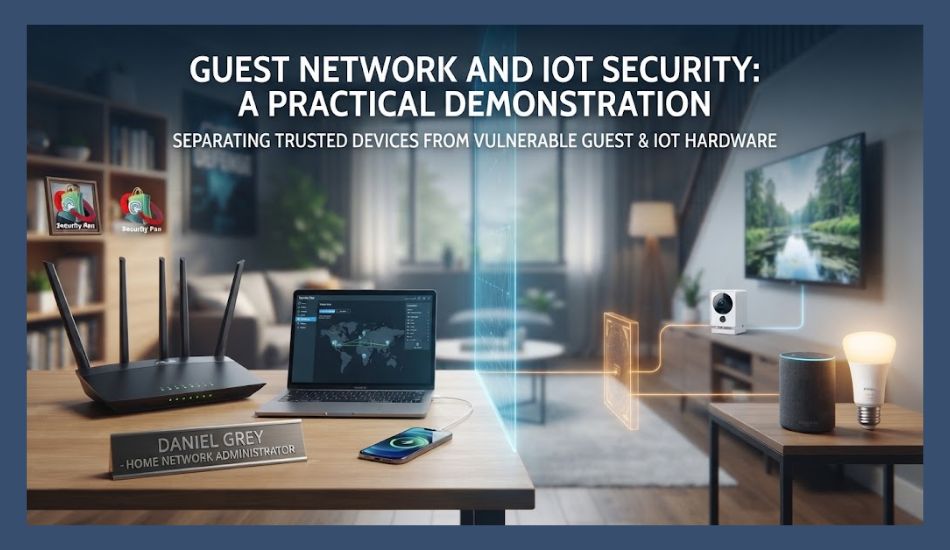
Use a separate guest network for visitors. You can also use it for some less-trusted IoT devices, such as smart TVs or other connected appliances.
This keeps those devices separate from computers and other devices that contain important personal information.
How to Secure the Devices Connected to Your Wi-Fi
Securing your router is only part of the job. Every phone, computer, smart TV, camera, printer, and other IoT device connected to your network can create another security risk.
1. Update Your Devices
Install security updates on your phones, computers, TVs, cameras, and smart home devices. Updates can fix vulnerabilities that attackers may use.
Turn on automatic updates when the device supports them.
2. Remove Devices You No Longer Use
Old phones, tablets, cameras, and smart devices may still have access to your network.
Remove devices you no longer use from your router’s connected-device list. If you no longer need an IoT device, disconnect it and remove its account or app.
3. Protect Smart Home Devices
Change default passwords on smart cameras, doorbells, speakers, and other connected devices. Use unique passwords for their accounts.
Do not expose a device to the internet unless you need that access.
4. Secure Your Computers and Phones
Keep your operating system, browser, antivirus software, and important applications updated. A hacked computer can create problems for other devices on the same network.
Use a screen lock and a strong account password on devices that contain personal or financial information.
5. Separate Less-Trusted IoT Devices
Connect guest devices and suitable IoT devices to your guest network when possible. This creates separation from computers and phones that hold sensitive information.
6. Remove Unknown Devices
After making these changes, check your router again. Every device connected to your Wi-Fi should have a reason to be there.
If an unknown device keeps appearing after you change the Wi-Fi password, continue investigating the router and the devices connected to it.
What to Do If Your Router Is Already Hacked
If you find unknown devices, changed router settings, or other signs of unauthorized access, treat the router as untrusted. Do not just change the Wi-Fi password and move on.
1. Disconnect Unknown Devices
Remove devices you cannot identify from the router. If possible, disconnect them physically from your network.
For important devices such as computers, cameras, and smart home systems, check whether they still behave normally after you secure the network.
2. Change Both Passwords
Change your Wi-Fi password and router admin password. Make both passwords unique.
Also change passwords for important accounts if you believe an attacker may have reached a computer or phone through the compromised network.
3. Update the Router
Install the newest firmware from the router manufacturer. Check the router’s settings for unknown admin accounts, DNS changes, port-forwarding rules, and remote management.
Remove settings you did not create.
4. Factory Reset the Router
If you cannot trust the router’s settings, perform a factory reset. This removes custom settings and gives you a clean starting point.
After the reset:
- Install the latest firmware.
- Create a new admin password.
- Set a new Wi-Fi password.
- Select WPA3 or WPA2.
- Disable unnecessary remote management.
- Review WPS and UPnP.
- Enable the router firewall.
- Reconnect only trusted devices.
5. Replace an Unsupported Router
If the router is end-of-life and no longer receives security updates, replace it. Continuing to use unsupported hardware can leave known vulnerabilities unpatched.
The FBI has warned that criminals can abuse vulnerable and outdated home routers as part of larger cybercrime operations.
When Should You Replace Your Wi-Fi Router?
You should replace your wireless router when it can no longer receive security updates or support modern Wi-Fi security. A cheap, old router can become a bigger risk when known flaws remain unpatched.
1. Your Router Is End-of-Life
Check the manufacturer’s support page for your router model. If the company no longer provides firmware updates, the router is end-of-life.
Do not rely on an old router for long-term home security.
2. It Does Not Support WPA2 or WPA3
Your router should support WPA3 when possible. If it does not, WPA2 is the safer fallback.
If your router only supports outdated security such as WEP, replacing it should be a priority.
3. Security Updates Are No Longer Available
A router may still work normally even when it is no longer safe. If the manufacturer stops releasing firmware updates, newly discovered security flaws may remain open.
4. The Router Has Been Compromised Repeatedly
If you reset the router, update its firmware, change passwords, and secure its settings but still see suspicious activity, replacement may be the safer option.
5. The Manufacturer No Longer Supports the Model
Do not judge a router only by its age. Check whether the manufacturer still supports the exact model you own.
If support has ended, choose a current router with regular security updates, WPA3 support, automatic firmware updates, and strong admin controls.
The FBI has warned that criminals can exploit outdated and end-of-life routers, making router support status an important part of your home Wi-Fi security.

How to Keep Your Home Wi-Fi Safe in 2026
After securing your router, keep checking it. A secure Wi-Fi network can become risky again when software gets old, new devices are added, or passwords are shared.
1. Check Your Router Regularly
Once a month, check:
- Connected devices
- Firmware updates
- Router admin accounts
- Wi-Fi security mode
- Remote management
- WPS and UPnP
- Firewall settings
Remove devices you no longer use.
2. Keep Firmware Updated
Install router security updates as soon as they are available. Turn on automatic updates if your router supports them.
3. Use Strong, Unique Passwords
Use different passwords for your Wi-Fi and router admin accounts. Do not reuse either password on another account.
4. Protect New Devices
Before connecting a new (Internet of Things) IoT device, change its default password and install available updates. If possible, place less-trusted smart devices on your guest network.
5. Replace Unsupported Hardware
Check your router’s support status from time to time. If the manufacturer stops providing security updates, replace the router.
6. Review Your Network After Sharing Access
If you give your Wi-Fi password to guests, consider using a guest network. This lets visitors connect without giving them access to your main network.
A monthly check takes only a few minutes and helps you catch unknown devices, outdated firmware, and unsafe settings before they become a bigger problem.
Helpful article: Why You Need a VPN: The Best Free V/S Paid VPN Options Explained
Conclusion: What Are the Best Ways to Protect Your Home Wi-Fi From Hackers?
You can prevent many home Wi-Fi attacks by securing your router and regularly checking your network.
Start with the basics: use WPA3 or WPA2, create strong passwords, change the router’s default admin password, install firmware updates, and disable features you do not need. Check your connected devices and remove anything you cannot identify.
Do not forget your smart home devices. Keep them updated, change default passwords, and use a guest network when suitable.
If your router is no longer supported or has reached end-of-life, replace it. A router that cannot receive security updates can leave your home network exposed.
Take a few minutes today to check your router. A secure router protects more than your internet connection. It helps protect the phones, computers, cameras, TVs, and smart devices connected to your home network.
FAQs About Home Wi-Fi Security.
1. Can someone hack my Wi-Fi without knowing my password?
Yes. Attackers may target weaknesses in your router, outdated firmware, exposed services, or connected devices. A strong Wi-Fi password still matters, but it is not the only security control.
2. How do I know if someone is using my Wi-Fi?
Check your router’s connected-device list. Compare the devices shown with your phones, computers, TVs, cameras, printers, and other (Internet of Things) IoT devices. An unknown device should be investigated.
3. Is WPA2 still safe in 2026?
WPA2 (Wi-Fi Protected Access 2) is still a suitable option when WPA3 (Wi-Fi Protected Access 3) is not available, provided it is configured correctly and your router receives security updates. Use WPA3 when your router and devices support it.
4. Should I turn off WPS?
If you do not need WPS (Wi-Fi Protected Setup), turning it off reduces an unnecessary feature on your router. You can connect devices using the normal Wi-Fi password instead.
5. Should I replace my old router?
Replace it if the manufacturer no longer provides security updates, it does not support modern Wi-Fi security, or it has reached end-of-life. An unsupported router can leave known security flaws unpatched.
6. Can a smart home device put my Wi-Fi at risk?
Yes. An insecure (Internet of Things) IoT device can become a weak point on your network. Keep smart devices updated, change default passwords, and use a guest network for less-trusted devices.

